This article applies to users with one of the following roles:
- Administrator
- Agency Administrator
- Branch Manager
- Agent
- Supplier
What are tasks?
Tasks can be created in MoveIT in order to help users and their teams manage activities related to their referrals and instructions in the system.
How can I create a task?
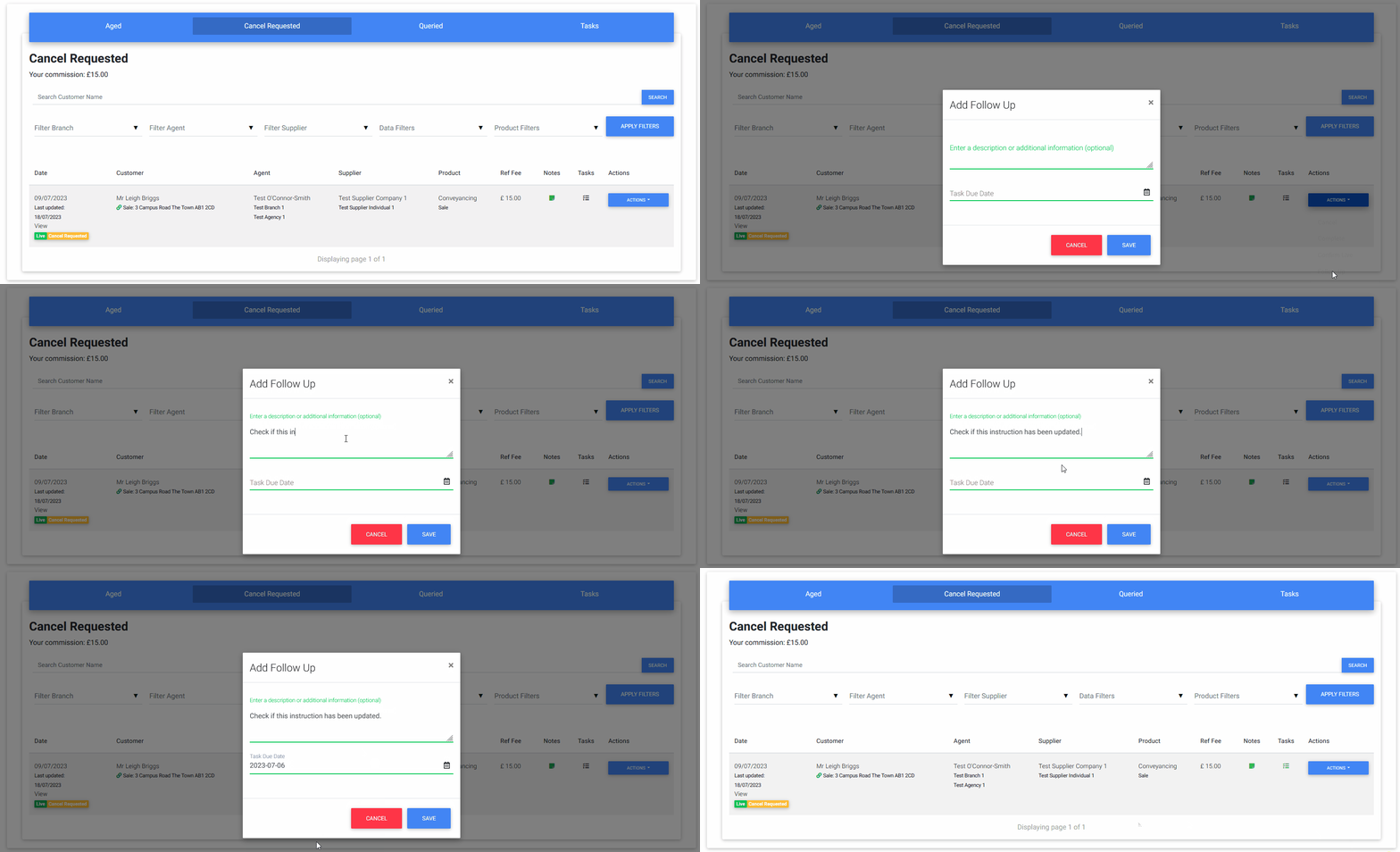
At present, the only type of task that can be created is a “follow up”. Follow-ups can be created by clicking on the Actions dropdown on any applicable item in the Referral Pipeline, Task Manager or another view where this menu is available.
When you create a follow-up task, you are able to give a description to help remind you and others the purpose of the follow-up. You can also set a due date which will be used to determine if a task is overdue.
Users with the role of Agency Administrator or Branch Manager can also create follow-ups on behalf of other users in their agency or branch respectively. In this case, the user who the task is assigned to will be notified that a new task has been created for them.
Where can I view my tasks?
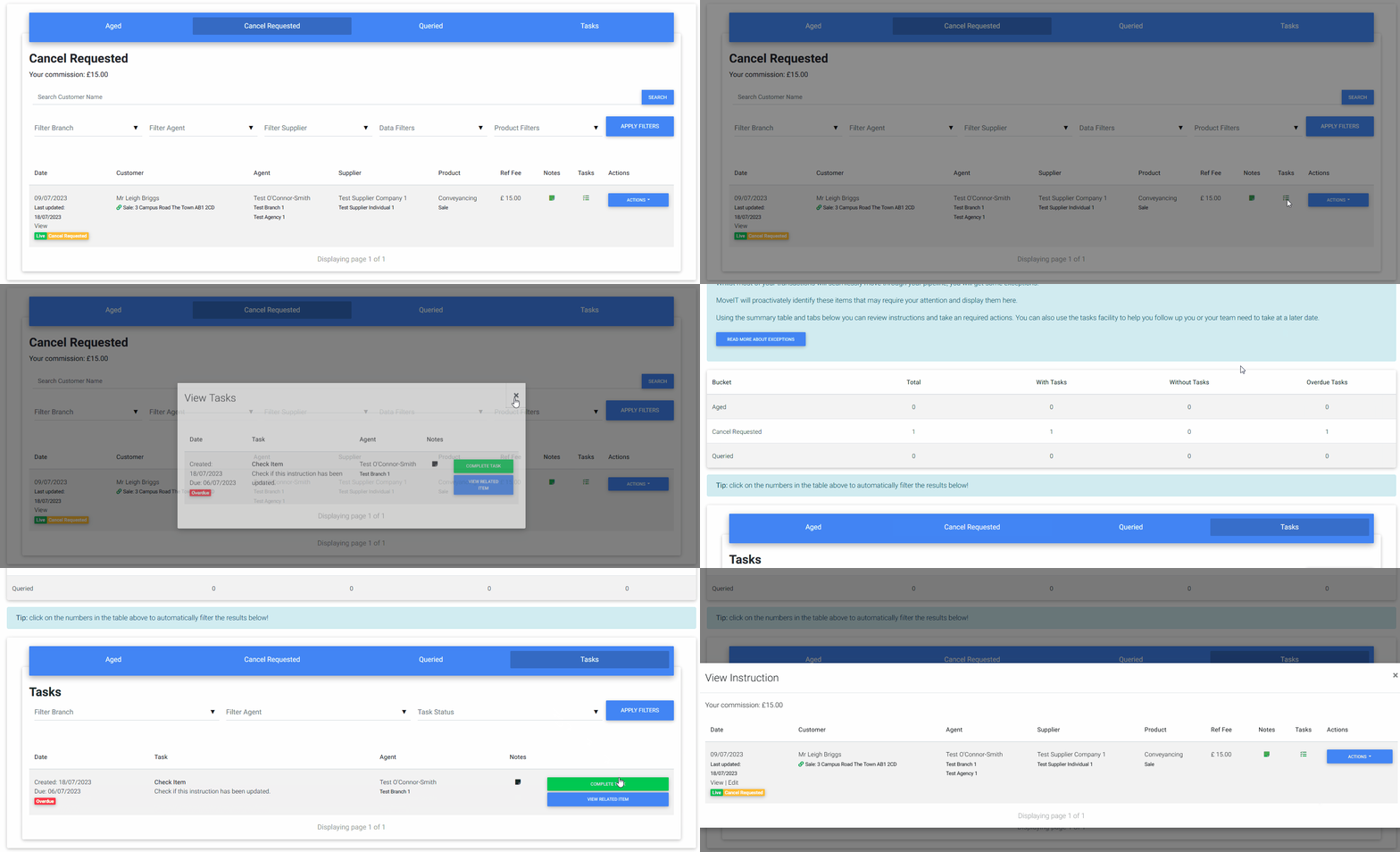
You can view tasks in the Referral Pipeline, Task Manager or anywhere else where the tasks icon is visible. The Icon will appear green if there are any tasks associated with the item being viewed.
The Task Manager page also has a specific Tasks tab where all tasks can be viewed and filtered. When opening in this view, it’s also useful to be able to use the View Related Item button to view the relevant referral or instruction.
You can also filter other lists of referrals or instructions by whether they currently have tasks or not, and whether they have overdue tasks attached to them.
How can I complete or clear tasks?
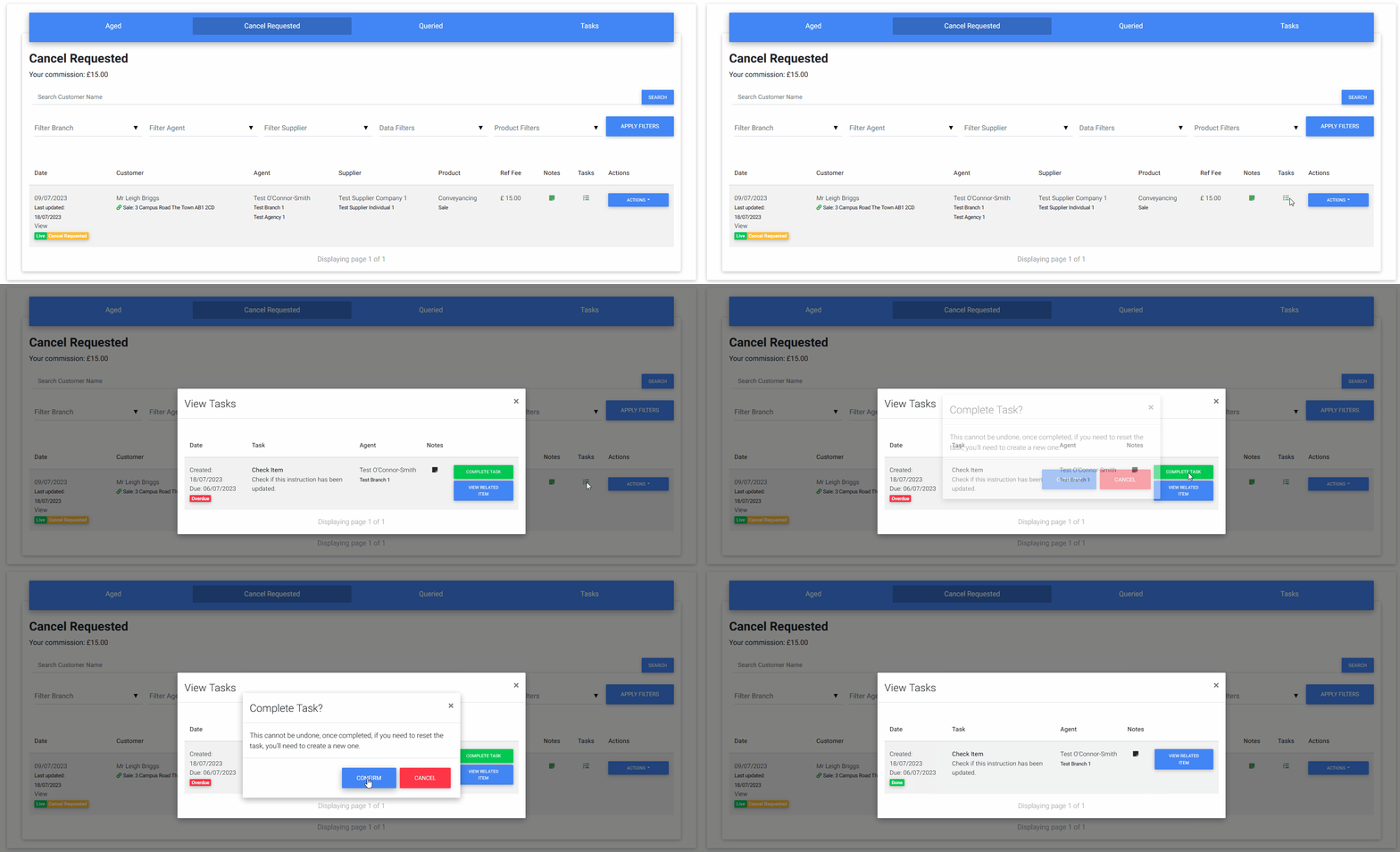
You can complete a task simply by viewing it and clicking the Complete Task button. Additionally, when taking an action on a referral or instruction, if you currently have an open task on that item, MoveIT will ask if you would like to complete your outstanding tasks automatically.