This article applies to users with one of the following roles:
- Administrators
- Agent Administrators
- Branch Managers
As of MoveIT V0.16.0 it is possible to manage the supplier panel of a branch via the MoveIT UI.
What is a Branch Supplier Panel?
When generating quotes or creating referrals in MoveIT the choice of supplier that is offered to the agent and customer will depend on two things:
- The type of supplier, e.g. when generating Conveyancing quotes you only see suppliers who offer Conveyancing.
- The choices are limited to those suppliers who are linked to the agent’s branch, i.e. that are on their panel.
- NB. If a branch doesn’t have any suppliers of a particular type assigned to their panel, all of the registered, active suppliers in the system of the relevant type will be offered.
How to Manage a Branch Supplier Panel
Prior to MoveIT V0.16.0 updating a branch’s supplier panel required a request to the MoveIT development team. From V0.16.0 onwards, Branch Manages and Agency Administrators can manage their Branch Supplier Panel any time via the MoveIT UI.
To manage a panel, simply navigate the the User Management page, click on the Branches tab and then click the Panel button against the branch you wish to manage.
NB. you will only be able to view and manage branches you have permission to manage. For Branch Managers this will be the branch they are assigned to. For Agency Administrators this will be any Branch in your organisation.
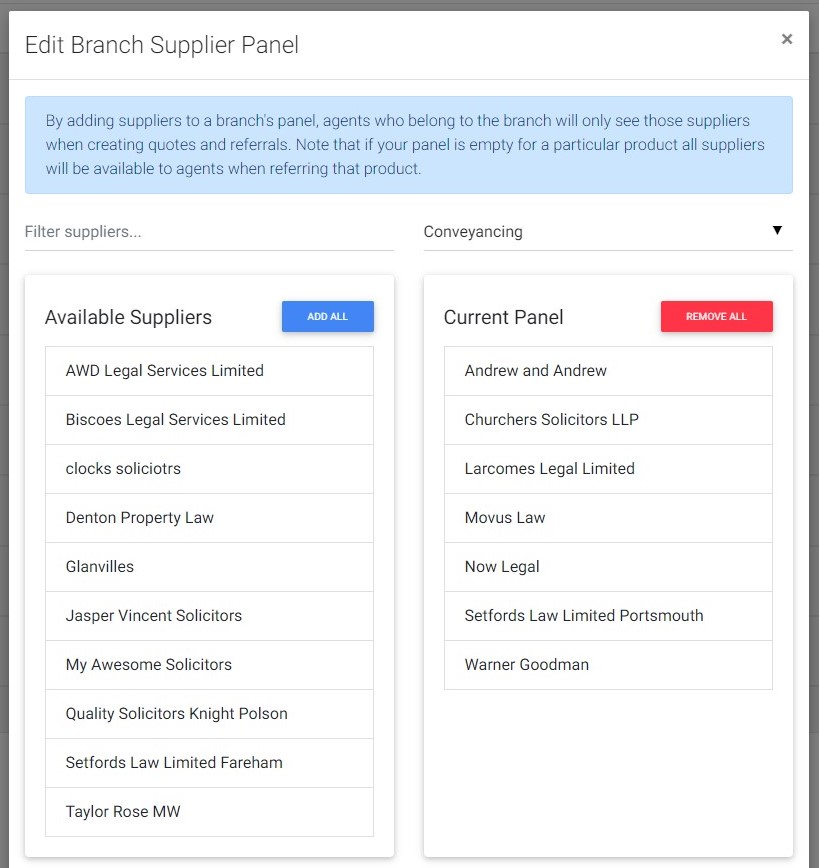
The panel management popup allows you yo easily drag and drop suppliers from the available pool to the panel list. You can also filter suppliers by type and search for them by name, add all and removal all. NB. adding all and removing all when the list is filtered only affects those currently visible.
Click Save to save your panel.