This article describes the billing processes and timelines in MoveIT so that you and your organisation can effectively understand when you will be billed for referral fees or when referral fees will be paid out to your organisation.
There are two key billing processes:
Supplier Billing: when suppliers are issued with notices and invoices for referral fees for instructions that have been completed.
Agency Payout: when agencies a paid their share of referral fees that have been received from suppliers for completed instructions.
Supplier Billing
The following table lists the key dates in the billing process and what happens at each stage:
Date
Stage
Description
20th of Each Month
Billing Notifications
At midnight at the start of the 20th of each month is the cut-off for instructions to be completed for the coming billing cycle. During the day of the 20th, MoveIT will automatically identify all instructions that have been completed and create a draft invoice for each supplier with instructions ready to be billed. Each supplier will be issued with a Billing Notification, which will be sent to any billing contacts listed on the supplier’s account. At this stage, Billing Notifications will also include any relevant credits that have been created for the supplier. Important: the Billing Notification is not intended to be an invoice, it is simply an advance notice to suppliers listing the instructions that they can expect to be billed for.
20th – 27th of Each Month
Billing Notification Review
During this period, suppliers can review their billing notification to ensure that they agree that all the instructions listed are in fact ready to be billed. In the rare occasions where an instruction has been incorrectly added to the Billing Notification, suppliers can use the relevant actions to raise a query with the referring agency or request a cancellation of the instruction. For details on the actions possible, please see the “Invoiced” section of this article.
27th of Each Month
Invoices & Direct Debit Requests
On the 27th of each month, suppliers will be issued with an invoice for all instructions that are ready to be billed. NB. any instructions that have been queried with the raising agency that have not yet be responded to will be automatically removed from the invoice and may be billed the following month depending on the specific case. Suppliers registered to pay via Direct Debit will have payments requested automatically at this time.
Agency Payout
The following table lists the key dates in the payout process and what happens at each stage:
Date
Stage
Description
1st of Each Month
Self-Bill Invoice Generation
On the first day of every month, MoveIT will automatically identify all the instructions that are ready to be paid out. This will include all instructions whose referral fees have been paid to MoveIT by the relevant suppliers no later than midnight on the 1st of the month. MoveIT will then generate a Self-Bill Invoice, that is, an invoice to MoveIT on behalf of the relevant agency. i.e. to represent the agency billing MoveIT for referral fees that are due. Self-Bill Invoices may also include reversals that are deducted from the total in rare cases where an instruction was billed to a supplier incorrectly and the referral fees have already been paid out to the agency.
1st – 7th of Each Month
Self-Bill Invoice Payment
MoveIT will make BACS payments to each agency who is due a pay out of referral fees, which will also be recorded in the invoices section of MoveIT.
This article applies to users with one of the following roles:
Administrator
Agency Administrator
Branch Manager
Agent
Supplier
What are tasks?
Tasks can be created in MoveIT in order to help users and their teams manage activities related to their referrals and instructions in the system.
How can I create a task?
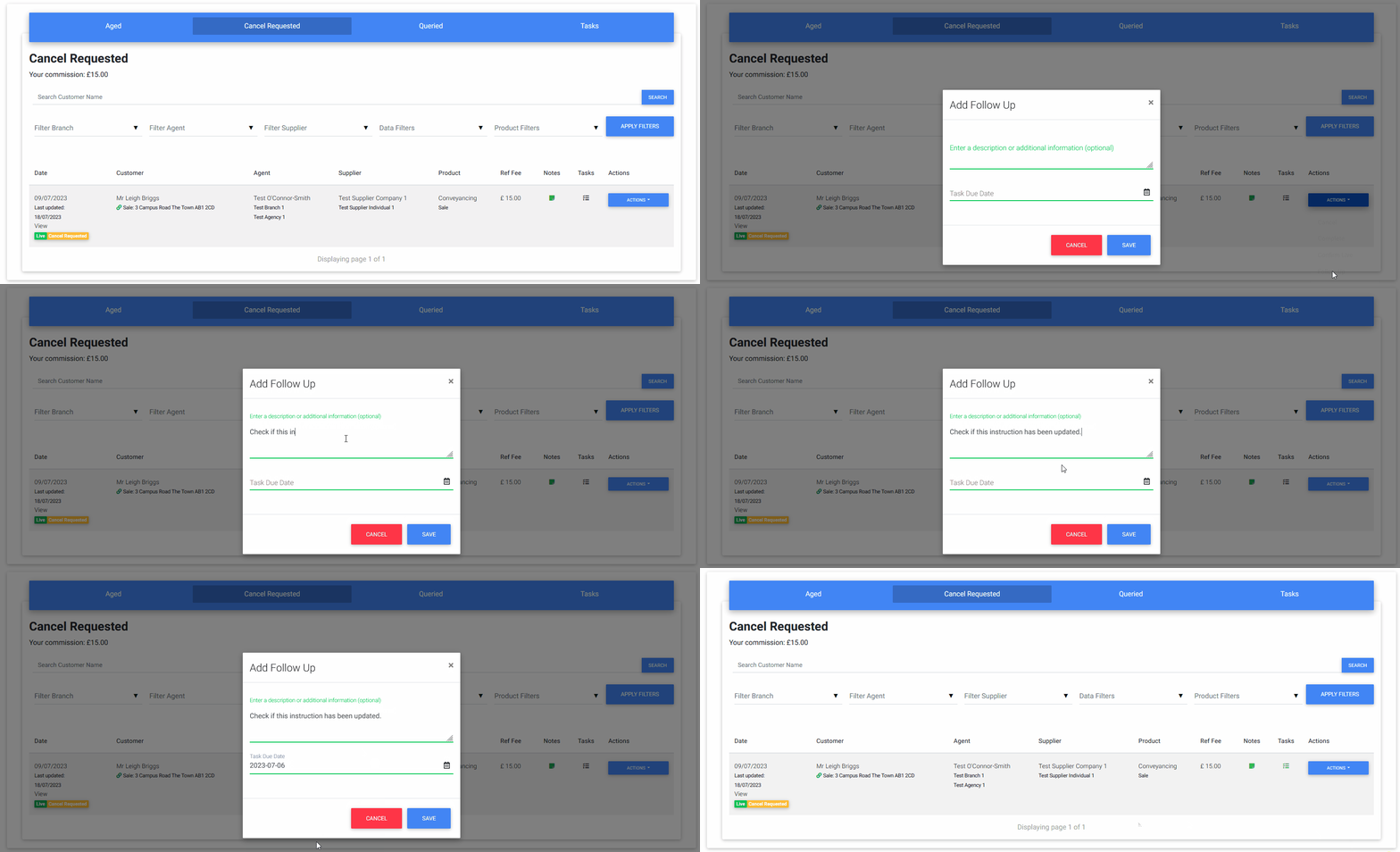
At present, the only type of task that can be created is a “follow up”. Follow-ups can be created by clicking on the Actions dropdown on any applicable item in the Referral Pipeline, Task Manager or another view where this menu is available.
When you create a follow-up task, you are able to give a description to help remind you and others the purpose of the follow-up. You can also set a due date which will be used to determine if a task is overdue.
Users with the role of Agency Administrator or Branch Manager can also create follow-ups on behalf of other users in their agency or branch respectively. In this case, the user who the task is assigned to will be notified that a new task has been created for them.
Where can I view my tasks?
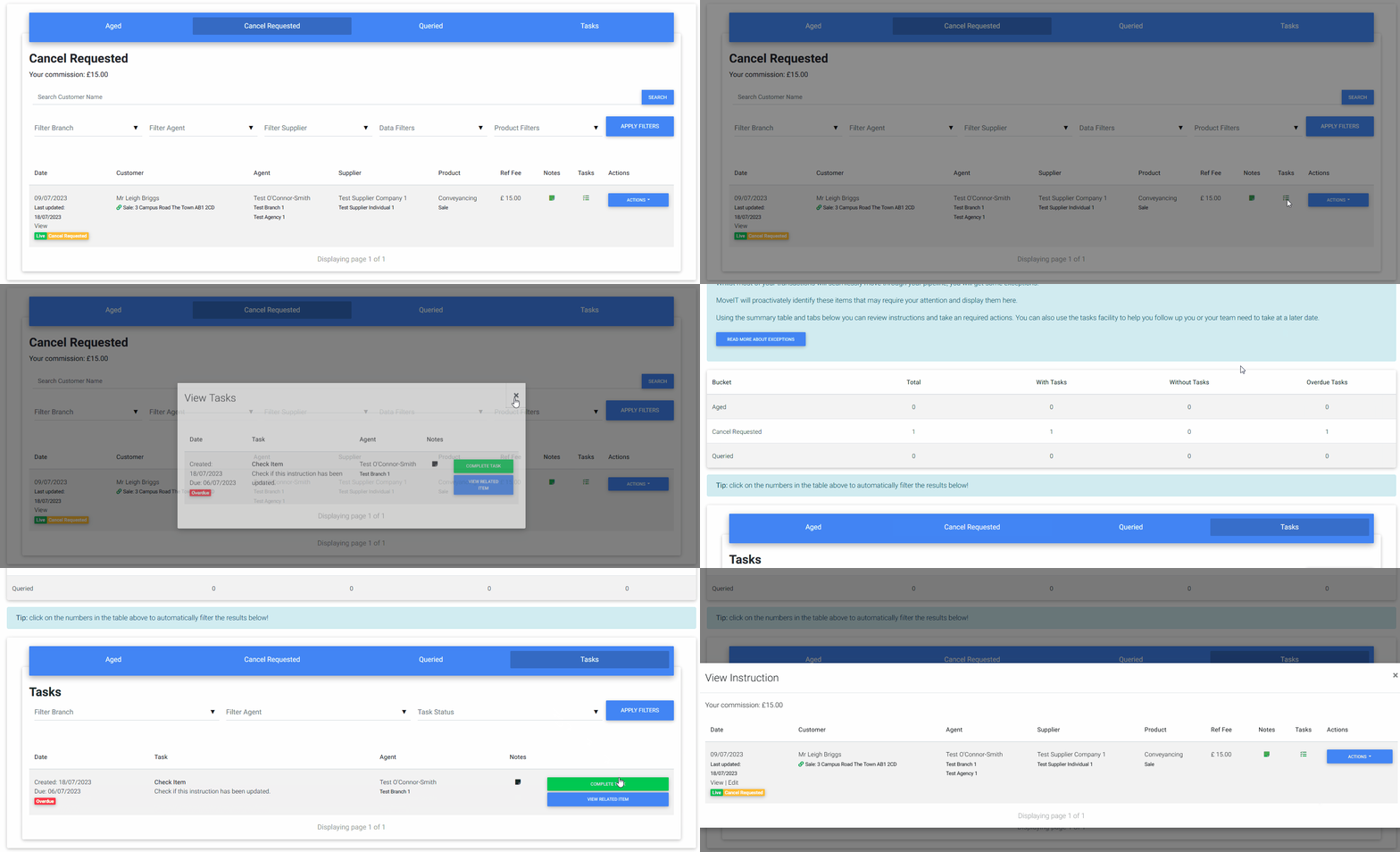
You can view tasks in the Referral Pipeline, Task Manager or anywhere else where the tasks icon is visible. The Icon will appear green if there are any tasks associated with the item being viewed.
The Task Manager page also has a specific Tasks tab where all tasks can be viewed and filtered. When opening in this view, it’s also useful to be able to use the View Related Item button to view the relevant referral or instruction.
You can also filter other lists of referrals or instructions by whether they currently have tasks or not, and whether they have overdue tasks attached to them.
How can I complete or clear tasks?
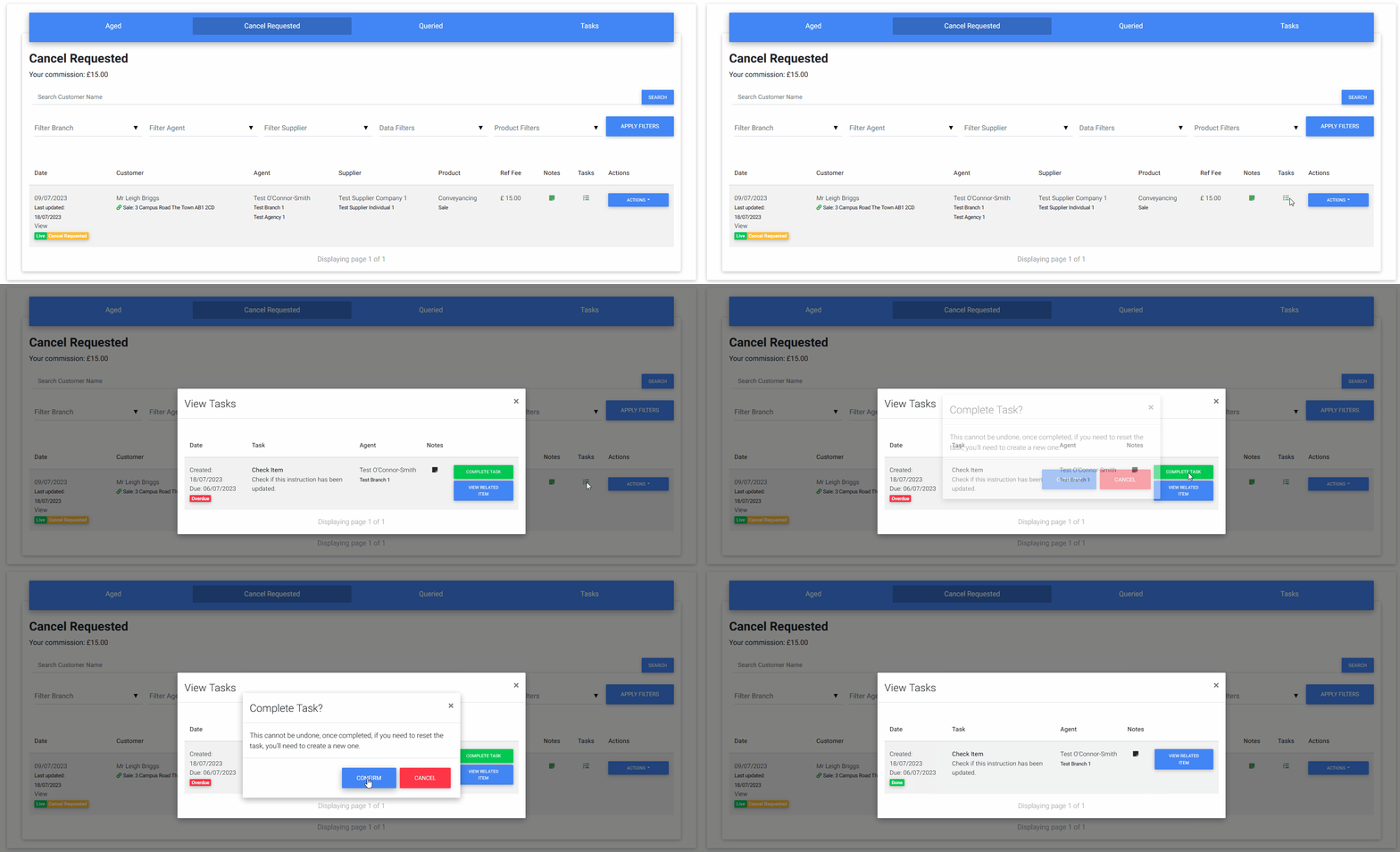
You can complete a task simply by viewing it and clicking the Complete Task button. Additionally, when taking an action on a referral or instruction, if you currently have an open task on that item, MoveIT will ask if you would like to complete your outstanding tasks automatically.
This article applies to users with one of the following roles:
Administrator
Agency Administrator
Branch Manager
Agent
Supplier
What are Exceptions?
Whilst most of your transactions will seamlessly move through your pipeline, you will get some exceptions.
MoveIT will proactively identify items that may require your attention and display them in the Task Manager.
You can then create tasks to help you manage these cases to enable you to maximise the number of successful referrals.
This page will describe all of the scenarios and how to manage them.
Task Manager Page
The Task Manager page allows both agency and supplier users to easily manage instructions that may require attention.
The page has a similar layout to the Referral Pipeline with the following tabs:
Aged
Cancel Requested
Queried
Tasks
See the exception categories below for an explanation of the scenarios that result in instructions appearing in these tabs, with the exception of of the Tasks tab, which just contains tasks.
Exceptions Summary
The exceptions summary shows the number of items your organisation has in each tab, as well as how many of those have tasks assigned and how many of the tasks are overdue:
As well as providing a clear view of what may require your attention, you can also click any of the number counts in the table to automatically switch switch and filter the tabs below to show the records being counted.
This allows you, for example, to click the number of queried instructions with no tasks assigned to see what is new and needs attention.
Exception Categories
Purchase Fall Through
When an agent’s CRM is connected to MoveIT they will get the option to connect a purchase to new quotes and referrals. As well as the benefit of auto-populating the new referral form, it also allows MoveIT to track the progress of the purchase.
If MoveIT detects that the related purchase has fallen through it will automatically unlink the CRM record and mark the instruction as “queried”, causing it to appear in the Queried tab in the Task Manager.
Agents are then able check to see if the customer is still looking to purchase the same or another property. If they are, the instruction can be updated and left in progress. If there is a new purchase record available, the instruction can be edited to link to the new record.
If not, the instruction can be cancelled.
Sale Withdrawal
When an agent’s CRM is connected to MoveIT they will get the option to connect a sale to new quotes and referrals. As well as the benefit of auto-populating the new referral form, it also allows MoveIT to track the progress of the sale.
If MoveIT detects that the related sale / property has been withdrawan it will automatically unlink the CRM record and mark the instruction as “queried”, causing it to appear in the Queried tab in the Task Manager.
Agents are then able check to see if the customer is still looking to sell the same property, perhaps through another agent. If they are, the instruction can be updated and left in progress, since they may well use the same supplier for the relevant service.
If not, the instruction can be cancelled.
Purchase / Sale Auto-Linking
When an agent’s CRM is connected to MoveIT, MoveIT will track customers who have live instructions that are not linked to a sale or purchase from the CRM. This could be because those items were not available to link when the referral was created or due to a purchase fall through or sale withdrawal (see above).
If MoveIT detects a new sale or purchase (depending on the instruction type) from the agent’s CRM, this record will be automatically linked to the in progress instructions and will then be used to track the progress of the instruction automatically.
Supplier Change
When an agent’s CRM is connected to MoveIT, MoveIT will detect if the conveyancer assigned to the transaction in the CRM is changed. If this happens, mark the instruction as “queried”, causing it to appear in the Queried tab in the Task Manager.
The agent can then check to confirm if the instruction is still valid, i.e. if the customer is still using the assigned supplier. If they are, an update can be provided and no further action is required. If the customer is no longer using the assigned supplier, the instruction can be cancelled and a new referral created if required.
Aged Instructions
Aged instructions are instructions that meet the following criteria:
MoveIT is unable to automatically determine the status of the instruction because it is not attached to a record from an agency’s CRM.
The instruction is old or has not been updated recently, the definition of “old” and “recently” varies depending on the product:
Conveyancing: The instruction is older than 16 weeks and has not been updated in more than 4 weeks.
Surveys & Property Services: The instruction is older than 2 weeks and has not been updated in more than 2 weeks.
Financial Services: For linked records, more than 16 weeks has passed since the completion of the related sale or purchase and has not been updated in more than 4 weeks.
Financial Services: For unlinked records: the instruction is older than 16 weeks and has not been updated in more than 4 weeks.
As well as being able to review aged instructions in the Aged tab on the Task Management page, suppliers are also sent a weekly report with their currently aged instructions requested that they either; complete the instruction, provide an update or request it’s cancellation.
Every month, aged instructions that still have not been updated will be automatically completed and added to the supplier’s next invoice.
Instructions that have been automatically completed through this process will be highlighted on the invoice and can still be queried or cancelled later.
Instruction Completed Early
If a supplier believes that an instruction has been completed too early, i.e. it is still in progress, then they can use the Query Instruction action to query it with the agency.
Agency users are then notified of the query, as well as being able to view all queried instructions in the task manager. If the agency can then confirm that the instruction is complete or return it to the pipeline. If the instruction has already been remunerated a credit will also be generated automatically.
NB: If a supplier queries an instruction and the agency does not take any action within 7 days the instruction will automatically be returned to the Live Pipeline and a credit will be created if applicable.
Supplier No Longer Acting
If a supplier is no longer acting for or providing service to a customer, they can request a cancellation.
Agency users are then notified of the cancellation request, as well as being able to view all cancel requested instructions in the task manager. If the agency can then confirm that the instruction is complete or cancel it. If the instruction has already been remunerated they can create a credit instead of cancelling.
NB: If a supplier requests the cancellation of an instruction and the agency does not take any action within 7 days the instruction will automatically be cancelled or a credit will be created if applicable.
Auto-completions
As well as the aged instructions process described above, conveyancing instructions may be automatically completed by MoveIT based on events detected in an agent’s CRM. Specifically, if a property sale is completed, related conveyancing instructions will also be completed. i.e. a sale instruction related to the property and a purchase instruction related to a sale of the same property. MoveIT will not automatically complete instructions for other products based on these events.
This article applies to users with one of the following roles:
Administrator
Agency Administrator
Branch Manager
Agent
Supplier
What is the Referral Pipeline?
The Referral Pipeline is the central point of MoveIT where all users are able to view any quotes, referrals and instructions that have been created. Items are organised into separate tabs depending on their status.
Items that are not on the “happy path”, e.g. have been declined or cancelled cannot be viewed in the Referral Pipeline. These items are only viewable by searching for and viewing a single customer.
Suppliers cannot currently view single customer records.
Navigating the Referral Pipeline
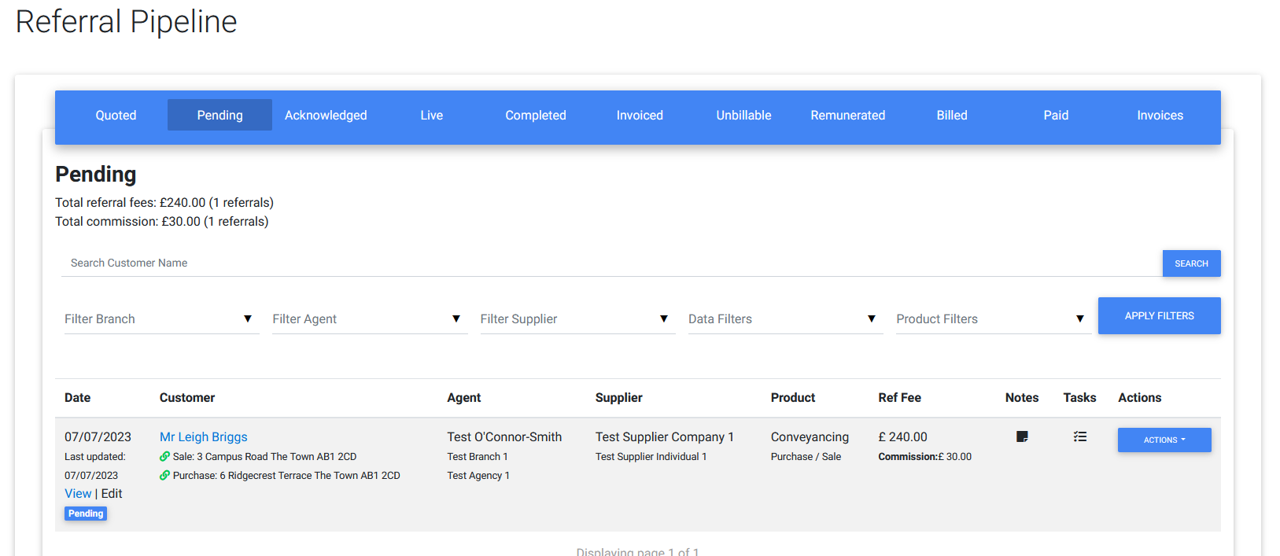
Here is a snapshot of the Referral Pipeline.
Some pipeline elements may appear slightly differently depending on the current tab and the level of the user viewing them.
The following is a description of each of the tabs:
Quoted
When creating new quotes or preparing new referrals, items will appear in this tab. For example, if you have created Conveyancing or Survey quotes for a customer but have not yet proceeded to create a referral, their quotes will be listed here and you can search by customer.
NB. Even though some products, such as FS, do not generate “quotes”, if you do not proceed to send a referral for a customer, these records will still appear here.
Since these items have not been sent to a supplier yet, this tab is not visible to suppliers.
Available Actions
Action
Description
Reject
This action will simply updated the status of the Quote Set to “Rejected” and remove it from the pipeline. Once a Quote Set is rejected, none of the attached quotes can be sent as referrals by agents or customers.
Pending
Referrals that have been sent to a supplier but have not yet been accepted or declined by that supplier will appear in this tab. Referrals in this tab may represent multiple instructions, e.g. a sale and purchase for Conveancing or any number of Financial Services.
Available Actions
Action
Description
Resend
Allows an agency user to resend a referral to the relevant supplier.
Reject
Allows an agency user to reject a referral if it is no longer required. A supplier will no longer be able to accept or decline the referral.
Review Quote
Allows a supplier to view the details of a referral before accepting or declining it.
Acknowledged
NB. This tab is only applicable to Financel Services referrals, and is therefore only visible to agencies and FS suppliers.
When a Financial Services referral is initially accepted, it moves to the Acknowledged tab. This is to indicate that the supplier has received the record but has potentially not yet made contact with the customer or the customer has not agreed to go ahead with the purchase of any financial services. Once the supplier has agreed with the customer which services they will go ahead with, this information can be captured on the referral and then instructed by the supplier.
Available Actions
Action
Description
Provide Update
Allows an agent or a supplier to provide an update on a referral.
Request Update
Allows an agency user to request an update on a referral from the supplier or the agent who created it.
Instruct
Allows FS Suppliers to instruct referrals and create instructions in the Live Pipeline.
Decline
Allows FS Suppliers to decline previously acknowledged referrals.
Reject
Allows agency users to reject / cancel a referral.
Follow Up
Allows any user to create a follow up task attached to the referral.
Live
This tab holds all of the instructions that are currently in progress, that is to say, the relevant supplier has accepted the referral and will provide the relevant service to the customer, but the process has not yet been completed.
Available Actions
Action
Description
Complete
Allows a user to move an instruction to the Completed pipeline when it is ready for billing.
Request Update
Allows an agency user to request an update on a referral from the supplier or the agent who created it.
Provide Update
Allows an agent or a supplier to provide an update on an instruction.
Request Cancel
Allows a supplier user to request the cancellation of an instruction.
Cancel
Allows an agency user to cancel an instruction. NB. Supplier users must use Request Cancel.
Confirm Live
Allows an agency user to confirm that an instruction a supplier has requested a cancellation for is actually still in progress.
Follow Up
Allows any user to create a follow up task attached to the instruction.
Completed
The referred service has been provided to the customer and the referral fee for the instruction is now ready to be billed. Note that this may be at a different point depending on the product. For example, Conveyancing referral fees are due once a sale or purchase has been completed, Surveys and Property Service instructions are due once the customer has paid for those services and Financial Services referral fees are due once the FS supplier has received their commission from the sale.
Available Actions
Action
Description
Request Cancel
Allows a supplier user to request the cancellation of an instruction.
Cancel
Allows an agency user to cancel an instruction. NB. Supplier users must use Request Cancel.
Confirm Complete
Allows an agency user to confirm that an instruction a supplier has queried or requested a cancellation for is actually correctly completed.
Query Instruction
Allows a supplier user to query why an instruction has been completed if they believe it is still in progress.
Reset to Live
Allows an agency user to reset a completed instruction to the Live pipeline. NB. Supplier users must use Query Instruction.
Request Update
Allows an agency user to request an update on an instrction from a supplier or the agent assigned to the instruction if it has been queried or cancel requested by the supplier.
Follow Up
Allows any user to create a follow up task attached to the instruction.
Invoiced
This tab contains all the instructions that have been added to an invoice for a supplier to pay for the relevant referral fees, but the fee has not yet been paid to MoveIT.
Available Actions
Action
Description
Request Cancel
Allows a supplier user to request the cancellation of an instruction.
Cancel
Allows an agency user to cancel an instruction. NB. Supplier users must use Request Cancel. NB. this action can only be taken before an invoice is paid or a direct debit payment has been requested, after this point, the Credit action will be available.
Credit
Creates a credit for the instruction in the Complete pipeline which will be applied to a future invoice.
Query Instruction
Allows a supplier user to query why an instruction has been completed if they believe it is still in progress.
Reset to Live
Allows an agency user to reset a completed instruction to the Live pipeline. NB. Supplier users must use Query Instruction. NB. If the invoice has been paid or direct debit payment has been requested, this action will create a credit in the Complete pipeline tab as well as a duplicate instruction in Live so that it can be completed and billed again in future.
Confirm Complete
Allows an agency user to confirm that an instruction a supplier has queried or requested a cancellation for is actually correctly completed.
Request Update
Allows an agency user to request an update on an instrction from a supplier or the agent assigned to the instruction if it has been queried or cancel requested by the supplier.
Follow Up
Allows any user to create a follow up task attached to the instruction.
Unbillable
Any instructions that cannot be billed for one reason or another will appear here.
Available Actions
None.
Remunerated
Once the referral fees for an instruction have been paid to MoveIT the instruction will appear in this tab.
Available Actions
Action
Description
Request Cancel
Allows a supplier user to request the cancellation of an instruction.
Credit
Creates a credit for the instruction in the Complete pipeline which will be applied to a future invoice.
Confirm Complete
Allows an agency user to confirm that an instruction a supplier has queried or requested a cancellation for is actually correctly completed.
Query Instruction
Allows a supplier user to query why an instruction has been completed if they believe it is still in progress.
Reset to Live
Allows an agency user to reset a completed instruction to the Live pipeline. NB. Supplier users must use Query Instruction. NB. this action will create a credit in the Complete pipeline tab as well as a duplicate instruction in Live so that it can be completed and billed again in future.
Follow Up
Allows any user to create a follow up task attached to the instruction.
Billed
After a supplier has paid MoveIT the relevant referral fees, MoveIT will create a self-bill on behalf of each agency that created the referrals that a supplier paid for. i.e. an invoice from the agency to MoveIT for the agency’s share of the referral fee. All instructions currently attached to an agency self-bill that has not yet been paid to the agency will appear here.
NB. this tab is not visible to suppliers.
Available Actions
Action
Description
Request Cancel
Allows a supplier user to request the cancellation of an instruction.
Credit
Creates a credit for the instruction in the Complete pipeline which will be applied to a future invoice.
Confirm Complete
Allows an agency user to confirm that an instruction a supplier has queried or requested a cancellation for is actually correctly completed.
Query Instruction
Allows a supplier user to query why an instruction has been completed if they believe it is still in progress.
Reset to Live
Allows an agency user to reset a completed instruction to the Live pipeline. NB. Supplier users must use Query Instruction. NB. this action will create a credit in the Complete pipeline tab as well as a duplicate instruction in Live so that it can be completed and billed again in future.
Follow Up
Allows any user to create a follow up task attached to the instruction.
Paid
The final destination for instructions. Once MoveIT has paid an agency their share of the refferal fees received from a supplier the paid instructions will appear in this tab.
NB. this tab is not visible to suppliers.
Available Actions
Action
Description
Request Cancel
Allows a supplier user to request the cancellation of an instruction.
Credit
Creates a credit for the instruction in the Complete pipeline which will be applied to a future invoice.
Confirm Complete
Allows an agency user to confirm that an instruction a supplier has queried or requested a cancellation for is actually correctly completed.
Query Instruction
Allows a supplier user to query why an instruction has been completed if they believe it is still in progress.
Reset to Live
Allows an agency user to reset a completed instruction to the Live pipeline. NB. Supplier users must use Query Instruction. NB. this action will create a credit in the Complete pipeline tab as well as a duplicate instruction in Live so that it can be completed and billed again in future.
Follow Up
Allows any user to create a follow up task attached to the instruction.
Invoices
This tab displays all invoices and self-bills that have been generated for your organisation. This is only visible to Agency Administrators and Suppliers. Each invoice will detail the applicable charges and commission, allow users to download PDF invoices as well as view all of the instructions that were billed as part of that invoice.
This article applies to users with one of the following roles:
Suppliers
As of MoveIT 0.16.0 suppliers are able to specify a number of different contacts for their organisation as well as what those contact details should be used for.
What Type of Contacts Can be Listed?
At time of writing there are three different types of contacts that a supplier can have on file, it is possible to have one or more of ay type:
Primary Referral Contact: this is an email address that will be used to send new referral information or referral updates for a referral or instruction where either a) the assigned supplier individual has no contact information, or b) a customer sent a referral themselves, e.g. through the quotes email and therefore a supplier individual was not selected. This email address will also be used to notify suppliers about aged instructions.
Billing: this is an email address that all billing related emails will be sent to.
Customer Contact: this is an email address and / or phone number that may be shown to a customer to enable them to contact a supplier directly.
How Can I Add Supplier Contacts?
At time of writing, to add new contacts you will need to contact the MoveIT team directly to request new or updated contacts.
In the near future, the MoveIT screens provided to suppliers to manage their organisations will be getting an overhaul, at which point you will be able to manage contacts easily within MoveIT.
This article applies to users with one of the following roles:
Administrators
Agent Administrators
Branch Managers
Agents
Suppliers
In MoveIT 0.16.0 we have improved the ability for Agent Administrators to communicate with Agents in their organisation via MoveIT, to assist with the management of referrals and instructions.
How Does the Internal Communications Process Work?
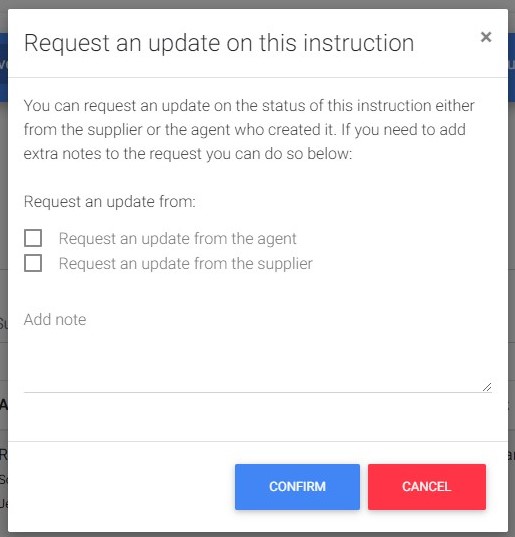
Agent Administrators have the ability to request an update from a supplier about an open referral instruction via the Referral Pipeline by using the Request Update pipeline action button.
As of MoveIT V0.16.0 there is the additional option to choose to request an update from a supplier, the agent who created the referral or instruction or both:
Doing so will send an email as well as a notification to the users in question along with any notes that you added to the update request.
The agent or supplier, to whom the request was sent is then able to use the Provide Update pipeline action in order to respond to the request. Doing so will send a response to the requestor.
Important: all request and update notes are visible to all relevant parties, i.e. agents and suppliers, and so we encourage all to keep dialogue as professional as possible.
This article applies to users with one of the following roles:
Administrators
Agent Administrators
Branch Managers
Agents
Suppliers
What’s New?
We recently launched a new notifications functionality in MoveIT with the initial functionality allowing users to be notified of new Help Content that had been posted so that user’s were aware of new functionality available in MoveIT as well as other generally helpful information.
The use of notifications has now been extended so that user’s are notified when updates are made to their referrals and instructions within the MoveIT system.
What Notifications Will I Receive?
Currently when a referral or instruction is updated either by a user or the system an event is added to the item, and these can be viewed by clicking the notes icon in the pipeline area. Agents will also receive some of these updates via email.
As of MoveIT V0.16.0 all of these events will also be posted to the agent that created the referral or instruction at the same time.
The aim of these notifications is help to keep you in the loop with what is happening with your own referrals and instructions and allow you to take action to keep things on track.
How Many Notifications Will I Receive?
Depending on how many instructions and referrals you have created in the system, you may receive a high number of notifications. We will welcome feedback if you find that the number of notifications you receive is too high or you’re getting notifications that you don’t feel are helpful to you.
How Can I Manage My Notifications
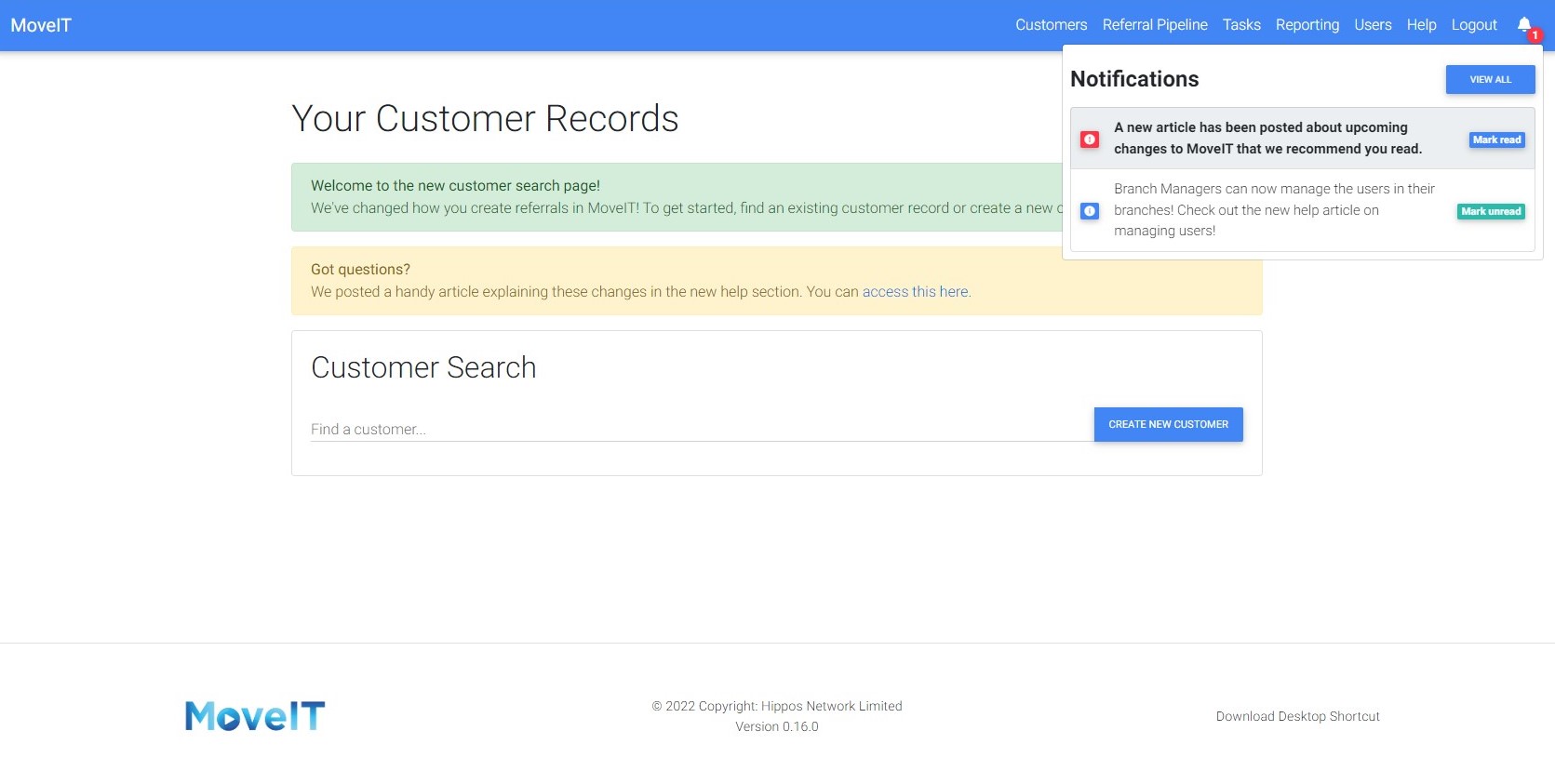
You can manage your notifications in two places. Firstly, the little bell in the top corner of MoveIT will show the number of unread notifications you have, clicking the bell will show you up to the latest 5 notifications you have received and allow you to mark them as read / unread.
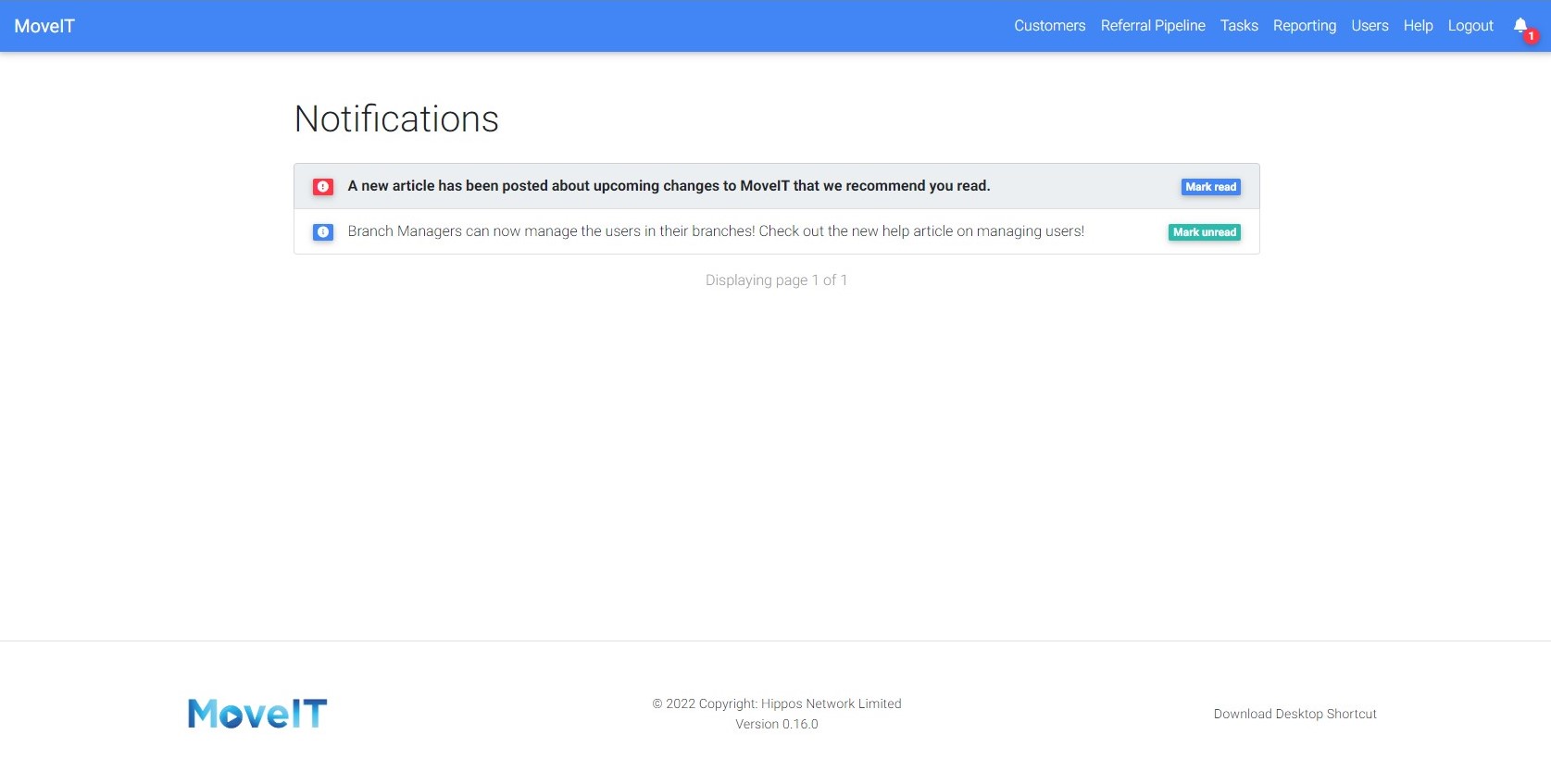
Clicking the View All button will take you to theNotifications page where you can manage all the notifications you have received.
This article applies to users with one of the following roles:
Administrators
Agent Administrators
Branch Managers
As of MoveIT V0.16.0 it is possible to manage the supplier panel of a branch via the MoveIT UI.
What is a Branch Supplier Panel?
When generating quotes or creating referrals in MoveIT the choice of supplier that is offered to the agent and customer will depend on two things:
The type of supplier, e.g. when generating Conveyancing quotes you only see suppliers who offer Conveyancing.
The choices are limited to those suppliers who are linked to the agent’s branch, i.e. that are on their panel.
NB. If a branch doesn’t have any suppliers of a particular type assigned to their panel, all of the registered, active suppliers in the system of the relevant type will be offered.
How to Manage a Branch Supplier Panel
Prior to MoveIT V0.16.0 updating a branch’s supplier panel required a request to the MoveIT development team. From V0.16.0 onwards, Branch Manages and Agency Administrators can manage their Branch Supplier Panel any time via the MoveIT UI.
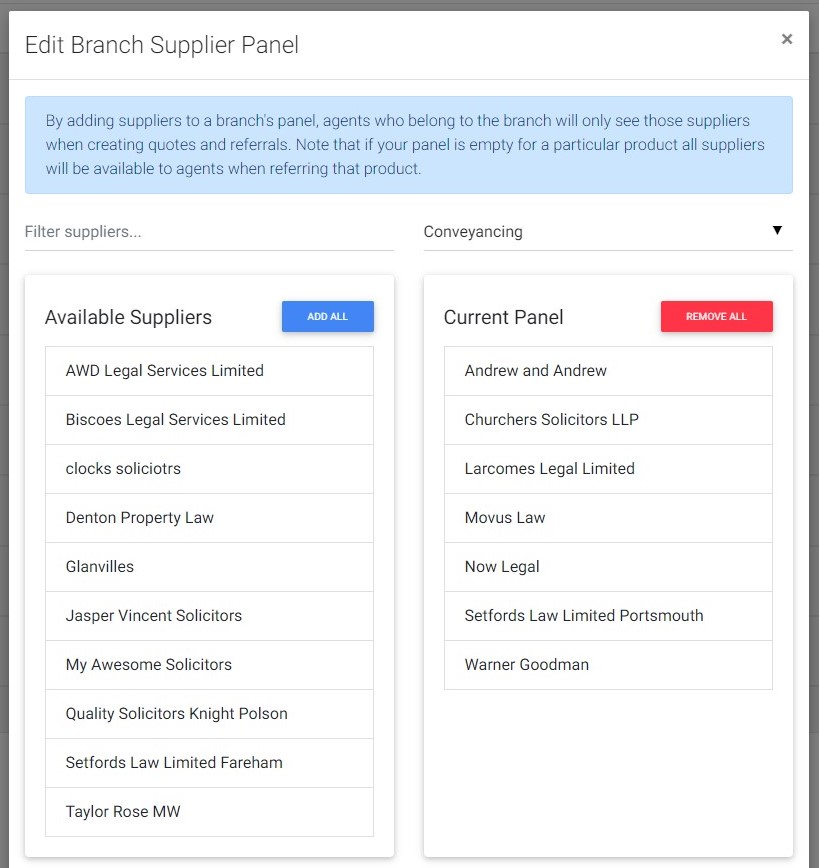
To manage a panel, simply navigate the the User Management page, click on the Branches tab and then click the Panel button against the branch you wish to manage.
NB. you will only be able to view and manage branches you have permission to manage. For Branch Managers this will be the branch they are assigned to. For Agency Administrators this will be any Branch in your organisation.
The panel management popup allows you yo easily drag and drop suppliers from the available pool to the panel list. You can also filter suppliers by type and search for them by name, add all and removal all. NB. adding all and removing all when the list is filtered only affects those currently visible.
This article describes important changes to the way that quotes and referrals are generated in MoveIT.
This article applies to users with one of the following roles:
Administrators
Agent Administrators
Branch Managers
Agents
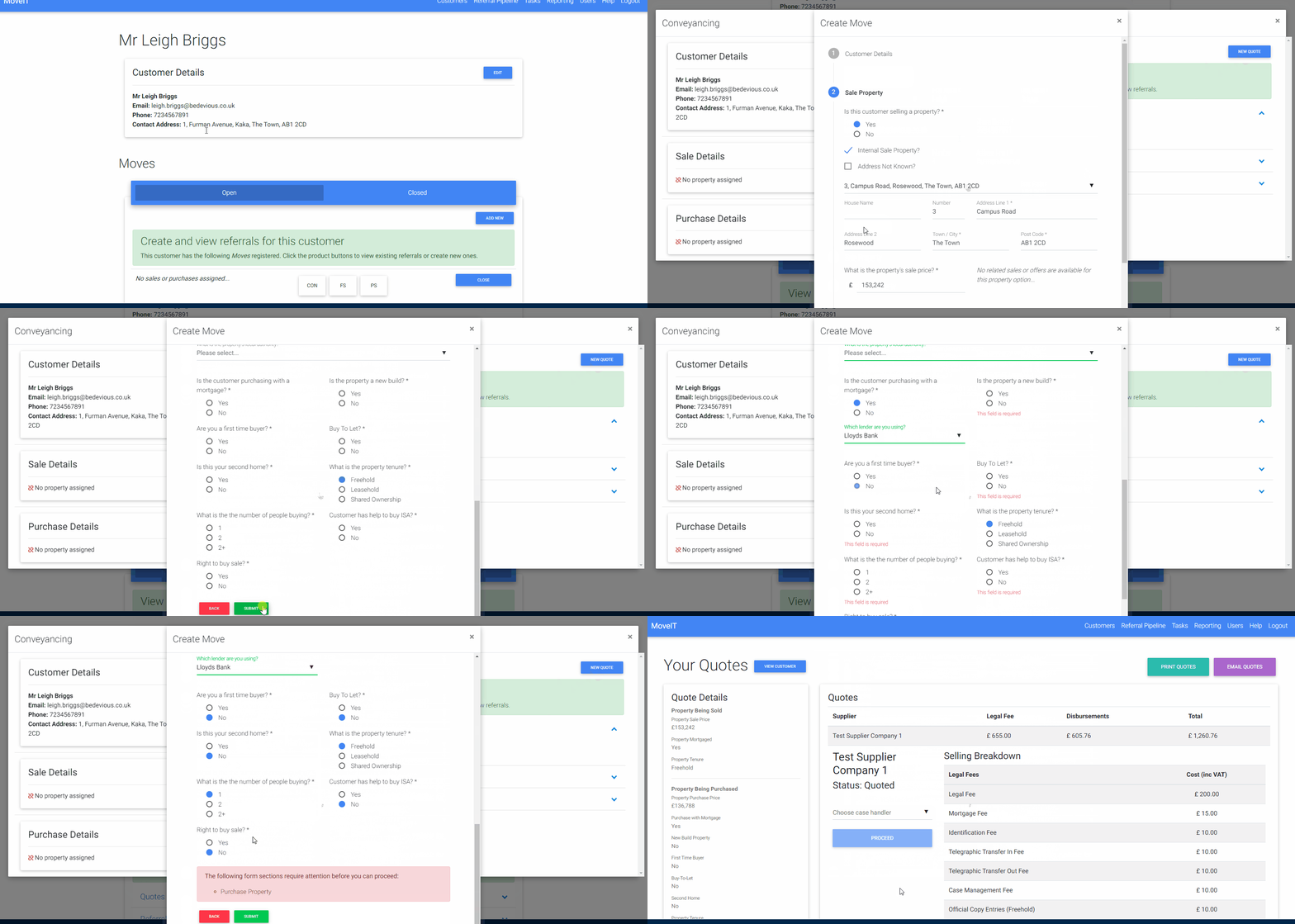
The primary entry point to MoveIT and to create quotes and referrals is changing. All quotes and referrals will be created directly from a customer’s profile and will be linked to individual Moves.
Let’s see how it works…
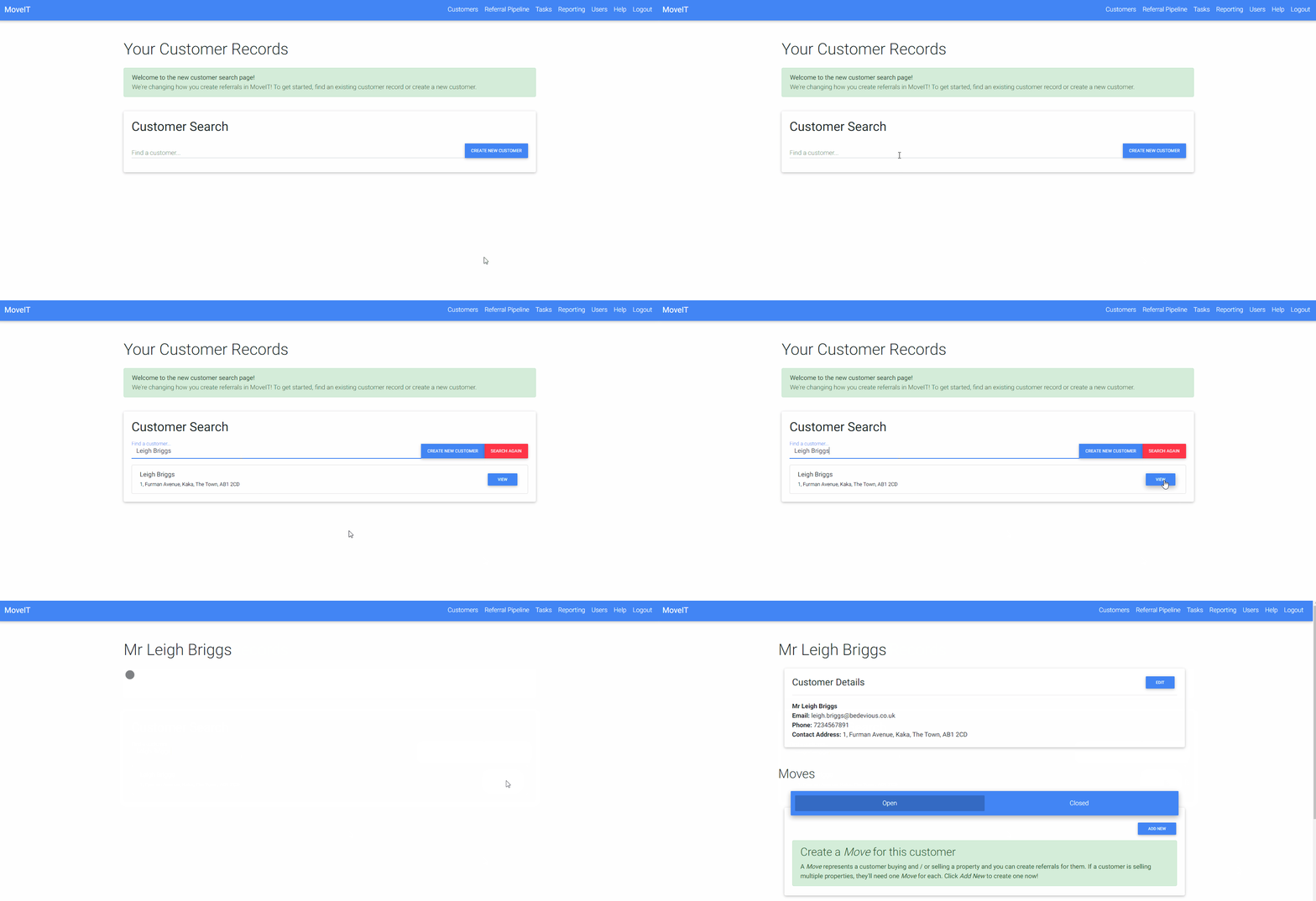
Lookup an existing customer record
Looking up existing customer records is straightforward and will allow you to find both customers that have been imported from your CRM / property management system as well as those that have been created in MoveIT:
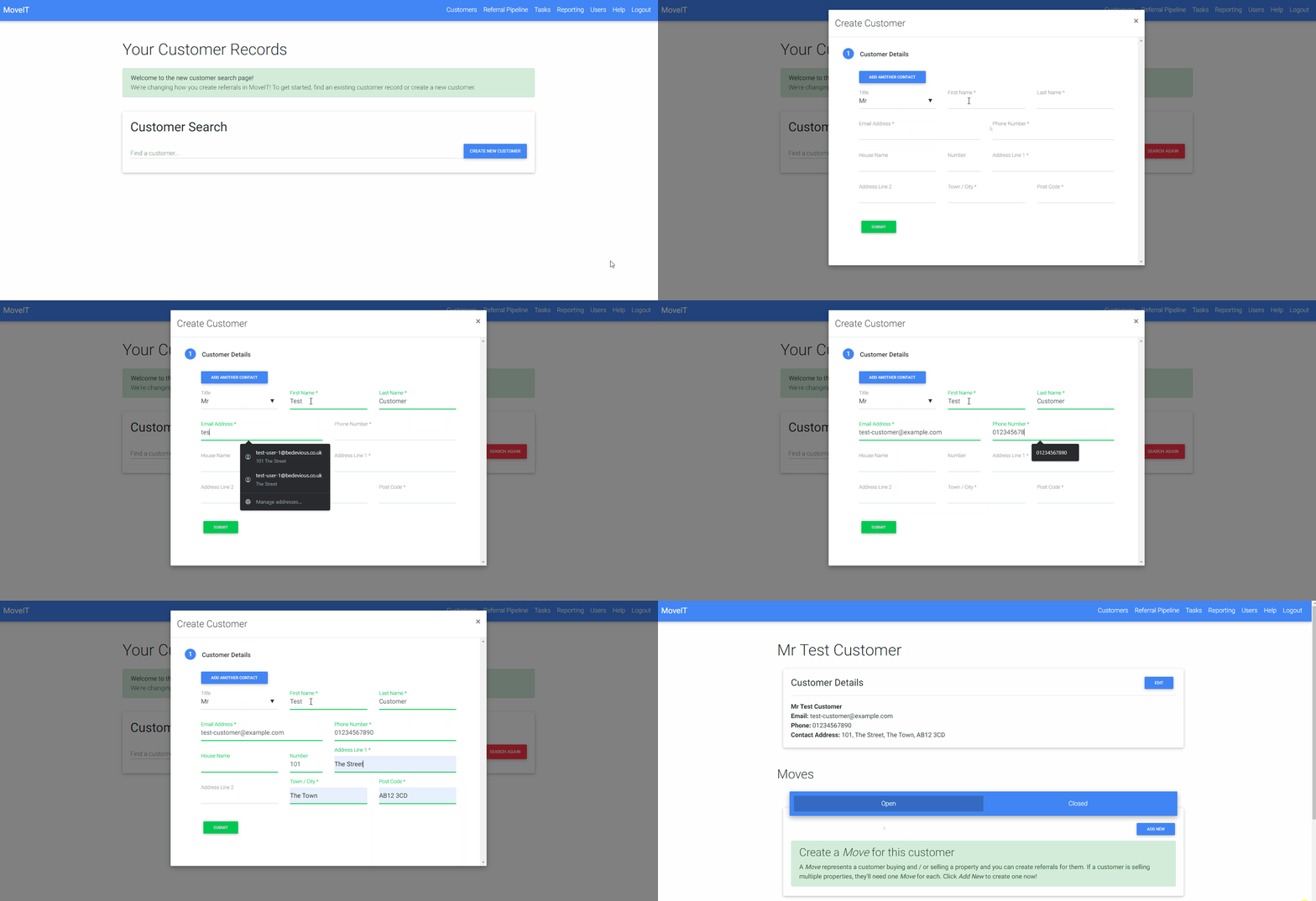
Create a new customer record
For agencies that do not import customer records, or for scenarios where you need to refer a customer who will not be registered in your CRM / property management system for some reason, you can create a new customer record:
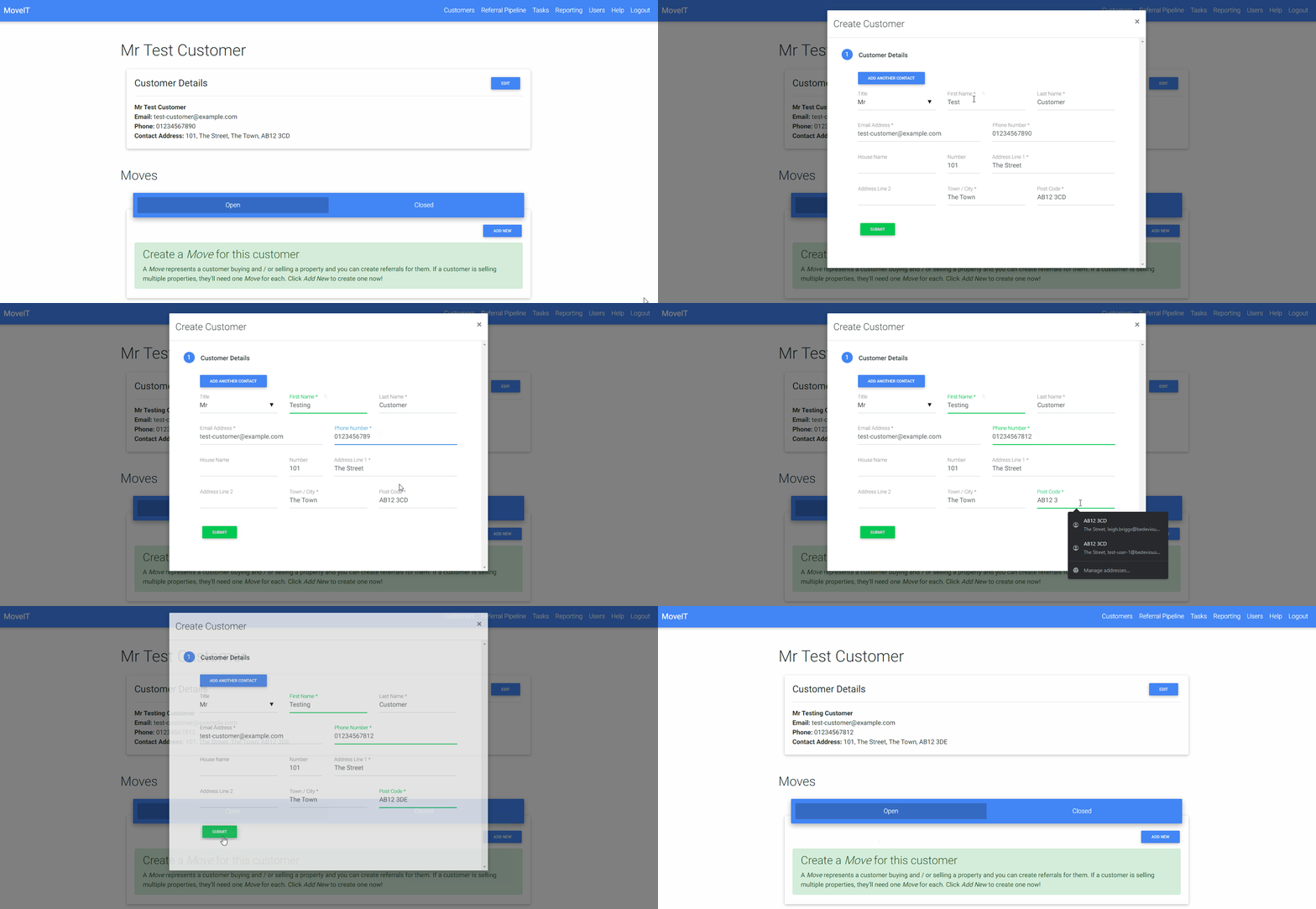
Edit a customer record
Customer records that have been created in MoveIT can be edited in MoveIT. If you need to update the details of a customer that was imported from your CRM / property management system, you will need to update their details in that system and the changes will be synced with MoveIT automatically:
What is a “Move“?
A Move is a new concept that helps visualise the purchases and sales being made by a customer and what services have been referred for each. For example a typical customer may be selling one property and buying another. This is one Move and the sale and purchase will be linked to it. The customer can then be referred for services relating to the sale and purchase at once.
If the customer moves again, their new sale and purchase will be linked to a new Move.
In other cases, perhaps less common, a customer may be selling multiple properties, here each would be linked to it’s own move and services can be referred for each of the Moves in turn.
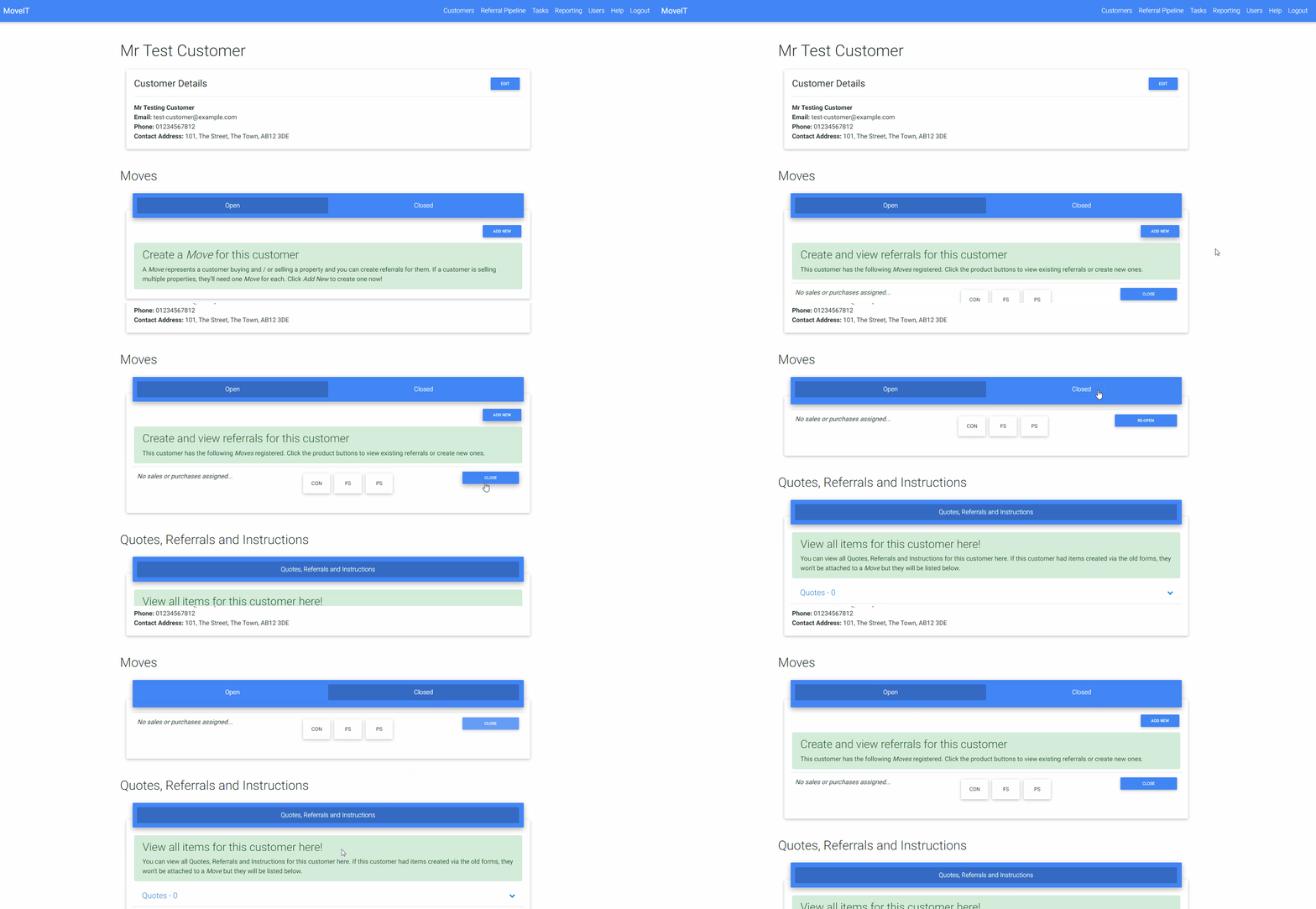
Create, Close and Re-open Moves
Creating a Move is a one click task. A Move can be closed if necessary, this has no effect other than to archive the Move and display it on the Closed tab rather than the Open tab and can be used to help keep a customer’s page tidy if required:
Create a Quote and / or Referral
Now that we have our customer record and our Move created we can start referring the customer for services.
To start you simply click on the button for the relevant product. This will display a small window containing the current details saved to the Move as well as any quotes, referrals and instructions (where applicable) that already exist for this product for the customer.
To create a new quote or referral, click the New Quote or New Referral button as appropriate. You will then be presented with a form with one or more sections to complete in order to proceed.
The form will be pre-populated with information that has already been collected, so if you’ve already entered information about a property for conveyancing for example, when referring the customer for financial services, you’ll only need to add the extra information required for that product.
// gif goes here…
Be sure to complete any required information, but if you miss anything the form will let you know which section needs your attention and highlight any missing information in red.
View Existing Quotes, Referrals and Instructions
You are able to view existing / past quotes, referrals and instructions for a customer in two places:
At the bottom of the customer page, these will show all items regardless of product and Move.
By clicking on a product button on any Move you will see any items related to that Move.
Once you have started interacting with a product on a Move the product button will display a traffic light colour depending on it’s status:
Colour
Description
Green
A referral for the product has been sent and no action on behalf of the agent is required.
Amber
The process of referring a customer for a product has been started but some action may be required, e.g. quotes have been generated for conveyancing but no referral has been sent.
Red
The process of referring a customer for a product has been start but action is required, e.g. a referral was sent but was declined by the supplier.
FAQs
Will quotes, referrals and instructions I created be visible on the new customer screens?
Quotes, referrals and instructions that were linked to a customer record from your CRM / property management software will be visible on the customer screen but they will not be linked to a Move. Any items created using the old Create New Customer button will not be linked to a customer. These items will still be visible in the Referral Pipeline as normal.
This article describes how you can manage users for your agency or branch using the MoveIT interface.
This article applies to users with one of the following roles:
Administrators
Agent Administrators
Branch Managers
You can access the user management interface here.
When you load the page you will be presented with a table of users that you have visibility of. You will also have the option to add new users as well as edit, deactivate and reactivate existing users depending on your user role.
User Role
Can Create / Edit Users From
Can Create and Edit Users with Roles
Agent
None
None
Branch Manager
Own branch
Agent, Branch Manager
Agent Administrator
Own Agency
Agent, Branch Manager, Agent Administrator
Administrator
Any
Any
It’s possible that you will see users that you are unable to edit, for example, if you are a Branch Manager and an Agent Administrator is assigned to your branch.
Adding Users
Adding new users is simple, once added, the new user will appear in your list of users to manage. Once users are created, they should use the reset password function to set their first password.
Click the New User button
Complete all of the details
Click Create User
Editing Users
Click Edit next to the user you’d like to edit
Amend any details as required
Click Save to save the changes to the user
Deactivating Users
Click Deactivate next to the user that you’d like to deactivate.
NB. Once a user is deactivated they will no longer be able to log in to MoveIT. Any users who are deactivated and are still logged in to MoveIT will see errors when trying to browse data. Their login session will eventually expire.
Reactivating Users
Click Reactivate next to a deactivated user
Once reactivated, users should be able to login and continue using MoveIT normally immediately.